Editing Existing Blocks
-
Navigate to the Page you want to edit.
-
Click on the Edit Mode button in the top left.
-
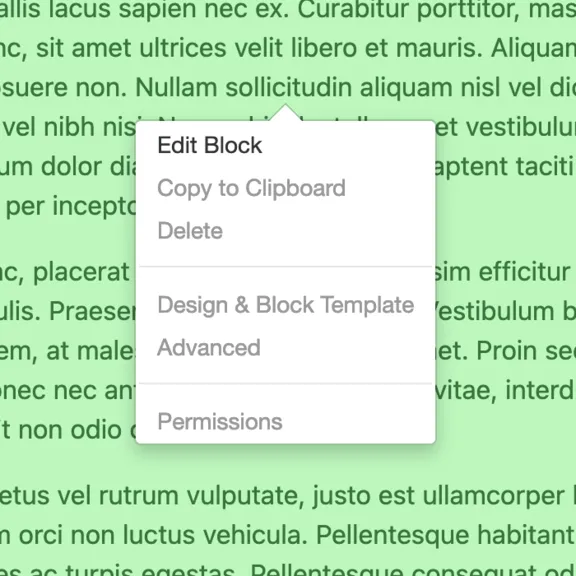
As you hover your mouse cursor over editable Blocks, green lines appear around those Blocks.
-
Click on an editable Block, which will turn green, and choose Edit Block from the menu that appears.
-
The Block’s editor will appear with the Block ready to edit.
NOTE: Different kinds of Blocks will have different editing interfaces.
-
Make your changes and click on the blue Save button when you’re ready to update the Block. You will see a notice appear that says, “Update Block: The block has been saved successfully.”
NOTE: When you save changes to your Block, those changes are temporarily unless you save the Page, mentioned in step 8 below.
-
Repeat as necessary, editing other Blocks on the Page.
-
Once you’re ready to make your changes to the Page permanent, follow the instructions at Saving Your Pages.